
How to Automate Sales Order Creation in SAP Business One
Still keying customer POs into SAP B1 by hand? Here are the practical ways to automate sales order creation in SAP Business One — from native tools to AI-driven, touchless PO-to-SO automation.
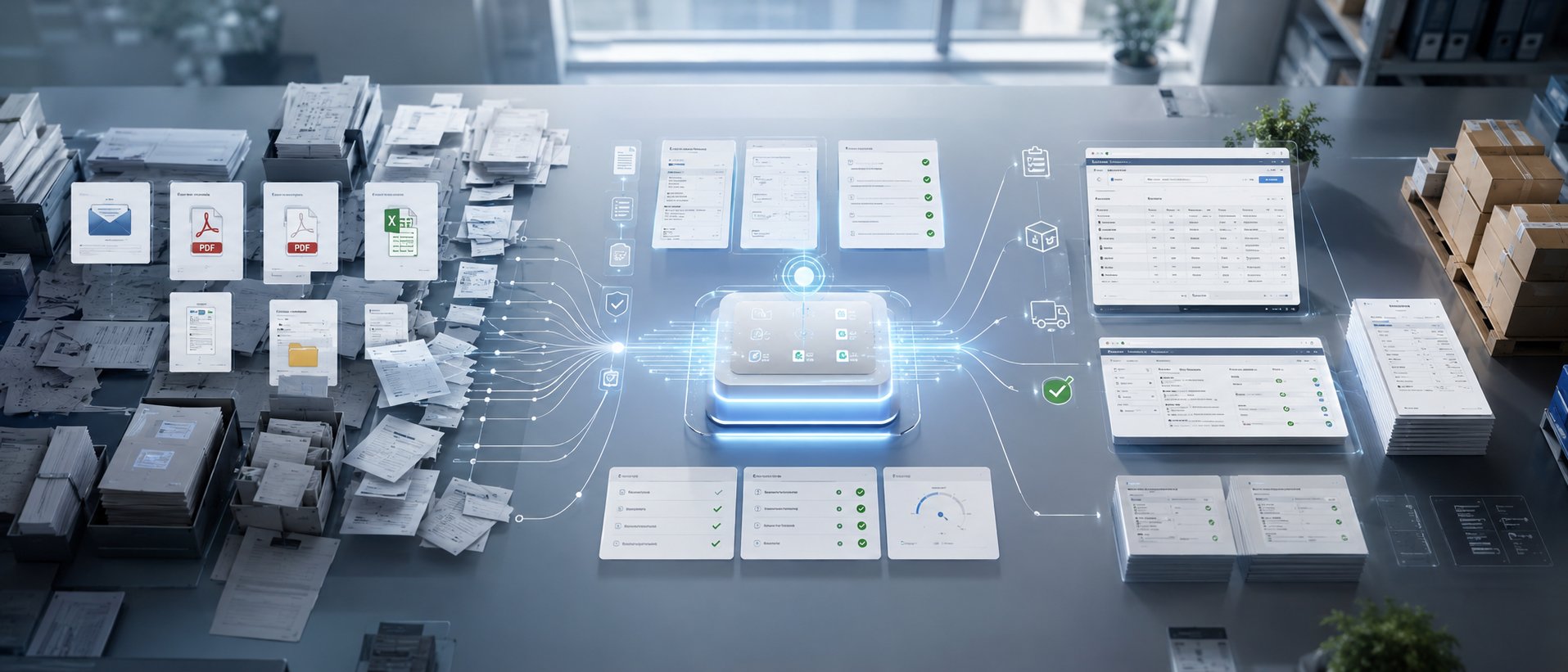
If your order desk spends its mornings retyping customer purchase orders into SAP Business One, you already know the cost: it is slow, it is error-prone, and it scales only by adding people. Every PO that arrives as a PDF or an email has to be read, matched to the right customer and items, checked against pricing and stock, and then keyed into a Sales Order — by hand.
The good news is that sales order creation in SAP Business One can be automated, and you do not have to modify your ERP core to do it. This guide walks through the realistic options, from native SAP B1 tools to fully AI-driven, touchless PO-to-SO automation, so you can pick the approach that matches your volume and your team.
Why manual sales order entry is worth fixing
Manual order entry feels cheap because the cost is hidden in salaries rather than software. But the real bill shows up elsewhere:
- Speed. A PO that sits in an inbox until someone has time to key it delays fulfilment and frustrates customers.
- Accuracy. Manual keying introduces wrong item codes, pricing mismatches, duplicate orders, and tax errors that ripple downstream through delivery and invoicing.
- Scale. When order volume doubles, headcount has to follow. Skilled SAP users stay tied to repetitive data entry instead of exceptions and decisions.
If any of that sounds familiar, automating sales order creation is one of the highest-return changes you can make to your SAP B1 operation.
The ways to automate sales order creation in SAP B1
There is no single button labelled “automate.” Instead, there is a ladder of options, each suited to a different situation.
1. Copy-from documents (built into SAP B1)
The simplest native automation is the copy-to / copy-from flow. If a Sales Quotation already exists, SAP Business One can carry it forward into a Sales Order without re-entering line items. This removes double keying within SAP — but it only helps when the order originates as a quotation inside the system. It does nothing for POs that arrive by email or PDF from a customer.
Best for: teams that already capture demand as quotations in SAP B1.
2. Bulk import with the Data Transfer Workbench (DTW)
For high-volume, structured orders, SAP’s Data Transfer Workbench lets you import Sales Orders from templated spreadsheets. If a customer can send you a clean, consistent file, you can map it once and import in batches.
The catch is the word clean. DTW expects rigid templates. Real customer POs arrive in dozens of formats — different layouts, item descriptions instead of codes, units that do not match your master data — so someone still has to transform each PO into the template first. DTW automates the loading, not the reading.
Best for: a few large customers who can commit to a fixed file format.
3. Integrations via the Service Layer or DI API
SAP Business One exposes the Service Layer (OData) and the DI API, which let external systems create Sales Orders programmatically. This is how e-commerce stores, EDI feeds, and middleware push orders into SAP B1 automatically.
This is genuinely powerful for structured, digital order sources — a Shopify store or an EDI partner sending standardized data. It is the right backbone for connected systems. But it assumes the order already exists as clean, structured data. An unstructured PDF in an email still has to be turned into that structured payload somehow.
Best for: digital order channels (web stores, marketplaces, EDI) with structured data.
4. AI-driven, touchless PO-to-SO automation
The hardest part of order entry is not posting the order — it is reading the customer’s PO and turning messy, unstructured input into clean, validated ERP data. This is exactly where AI changes the equation.
With UpBuff’s Intelligent PO-to-SO automation, AI agents handle the whole flow: they read the incoming PO — whether it is in the email body or an attached PDF — extract the customer, items, quantities, and pricing, validate everything against SAP Business One master data in real time, and create the Sales Order, all without fixed templates. Anything unusual is routed to a human for review. This is what “touchless order processing” actually means: the order flows from inbox to posted SAP Sales Order with no manual keying, and your team only touches the exceptions.
Best for: any business receiving customer POs by email or PDF in varied formats — manufacturing, FMCG and distribution, retail, pharma, and logistics.
How AI-driven sales order automation works, step by step
Here is what the touchless flow looks like in practice for an SAP B1 customer.
Step 1 — Capture the PO from email
An AI extraction agent monitors a designated inbox or customer portal and intercepts every incoming purchase order the moment it lands — whether the PO is typed in the email body or attached as a PDF or scanned file. No one has to download, sort, or forward anything.
Step 2 — Extract and pre-fill the Sales Order
Using intelligent document processing (not rigid templates), the agent reads the customer and vendor details, item codes, quantities, and pricing, then pre-populates an editable Sales Order form with that structured data. Unstructured paper becomes structured ERP data automatically.
Step 3 — Validate against SAP master data
Before anything is posted, the extracted data is cross-checked in real time against SAP Business One master data — customer codes, item masters, pricing, tax, and stock availability. Mismatched names, unknown item codes, or unit-price variances are flagged immediately, with searchable suggestions to resolve them in seconds.
Step 4 — Verify with the source side by side
Reviewers see the editable Sales Order next to the original PO in a split-screen view. Hovering over any field highlights the exact spot it was extracted from on the source document, so verification takes seconds instead of a line-by-line hunt. This is the “human-in-the-loop” control that keeps automation safe.
Step 5 — Approve and post to SAP
Once validated, the order is approved (or routed to an approver) and posted to SAP Business One with a single click. The Sales Order number is stored, the order can be sent back to the customer, and every action is logged for audit.
The result: order entry that took hours of manual keying now takes minutes, with fewer errors and a full audit trail — and you can start with manual approval on every order, then dial up automation as your confidence grows.
How to choose the right approach
A quick way to decide:
- Orders already start as quotations in SAP? Use copy-from documents.
- A few big customers who can send a fixed file? DTW bulk import.
- Digital channels like a web store or EDI? Service Layer / DI API integration.
- Customer POs arriving as varied emails and PDFs? AI-driven PO-to-SO automation is the only option that reads and validates them without manual transformation.
Most mid-market SAP B1 businesses end up combining these — structured channels through the Service Layer, and the long tail of email and PDF POs through AI. If you also want field reps creating ERP-governed orders from mobile, that pairs naturally with an ERP-integrated CRM.
Frequently asked questions
Can SAP Business One read PDF purchase orders automatically? Not on its own. Native SAP B1 tools (copy-from, DTW, Service Layer) work with structured data, not unstructured PDFs. To read a PDF or email PO and turn it into a Sales Order automatically, you need an AI document-processing layer on top of SAP B1.
Is automated sales order entry safe? Yes, when it keeps a human in the loop. A good system starts with manual approval on every order, validates against master data before posting, routes exceptions to a person, and logs every action for audit — so you scale automation at your own pace without losing control.
Does this modify the SAP core? No. AI automation connects through official SAP APIs (Service Layer, OData, DI API) and keeps SAP Business One as the system of record, so your upgrade path and governance stay intact.
How fast can it go live? Because it does not require ERP core changes, AI-driven PO-to-SO automation can typically be deployed in weeks rather than months, starting with one order channel and expanding from there.
Ready to automate order entry in SAP B1?
If customer POs are piling up in an inbox, automating sales order creation is the fastest way to reclaim your team’s time and cut errors. See how UpBuff’s Intelligent PO-to-SO & Invoice Automation turns email and PDF purchase orders into posted SAP Sales Orders — with full human control and audit transparency.
Related posts
View all posts » ERP Operations
 AI PO-to-SO Automation vs. Manual Order Entry vs. EDI: Which Wins?
A clear, side-by-side comparison of the three ways to turn purchase orders into SAP Sales Orders — manual entry, EDI, and AI PO-to-SO automation — with a simple framework for choosing the right one.
 ERP Operations
 PO-to-SO Automation for SAP S/4HANA: The Enterprise Guide
How large enterprises automate purchase-order-to-sales-order conversion in SAP S/4HANA with AI — Clean Core compliant, human-in-the-loop, and without touching the ERP core.
 ERP Operations
 Touchless Order Processing for SAP Distributors: A Practical Guide
Distributors live or die on order speed and accuracy. Here's how touchless order processing turns the flood of email, PDF, and WhatsApp POs into posted SAP Sales Orders — without growing your order desk.